
How to Split a PDF by Chapter Without Missing Pages
When a long PDF is split by chapter, missing pages usually come from a page-number mismatch rather than a broken split button. The table...
Articles about visible PDF stamps, seal images, page ranges, placement, readability and export checks.
PDF stamping topic center
This topic center explains how to add visible marks to PDF files for routine office work. It covers received marks, review labels, approval copies, company seal images, and consistent page-level status marks. Place the mark without hiding names, dates, totals, signatures, page numbers, tables, or QR codes that people still need to read.
New users should begin with the all-pages workflow. It explains why a stamp that looks correct on page one can cover a table, a landscape attachment, or a signature block later in the same file. Next, prepare a transparent PNG seal image and check its scale in the preview. A clean source image avoids the white rectangle problem and gives you more control over opacity, rotation, and placement.
After the basics, select the guide that matches the task: invoice placement, batch stamping, stamp opacity, or whether a visible mark is enough for the intended workflow. The articles separate visual status marks from identity verification and certificate-backed digital signatures. That distinction matters because a convenient office mark should not be mistaken for formal approval evidence or document-integrity protection.
Before sharing the exported file, keep the original PDF and inspect representative pages. Check the first page, a dense text page, a table page, and the final page. This short review catches most placement and readability problems before the document reaches the next person in the workflow.
Search by task, format, or PDF workflow.
When a long PDF is split by chapter, missing pages usually come from a page-number mismatch rather than a broken split button. The table...

When you need only part of a long PDF, the hardest choice is often not the button. It is the output: do you need...

Fix sideways pages, mixed portrait and landscape images, and crop risks after converting images to PDF with a practical review workflow.

Converting PDF pages to images? Compare JPG and PNG for photos, text, tables, charts, and screenshots, with practical DPI and export-check guidance.

Learn how to add a PDF watermark to selected, odd, or even pages with PDF SealBox, including Range, Odd, Even, and Exclude examples.

If you want to keep a PDF cover page but hide its number, most page-numbering tools can handle that. The harder requirement is making...

Can You Search Text After Converting Images to PDF? OCR vs. Image-Only PDFs Usually, no. Converting a JPG, PNG, phone photo, or scan into...

Photos to PDF: How to Choose Page Size, Margins, Contain, and Fill When you turn photos into a PDF, the difficult part is rarely...
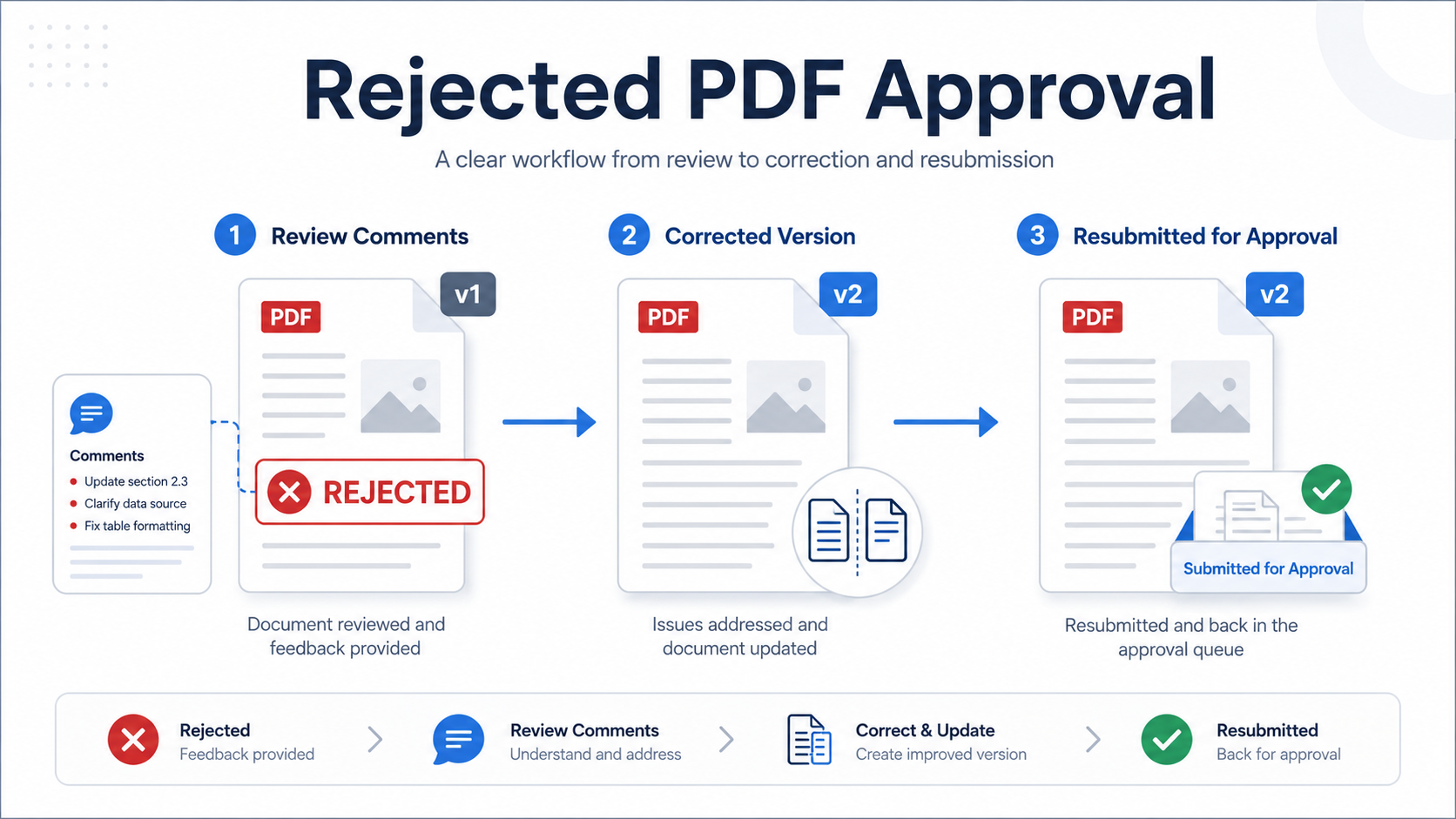
Direct answer: When a PDF is rejected in an approval workflow, do not overwrite the rejected file or simply remove the rejection mark. Record...
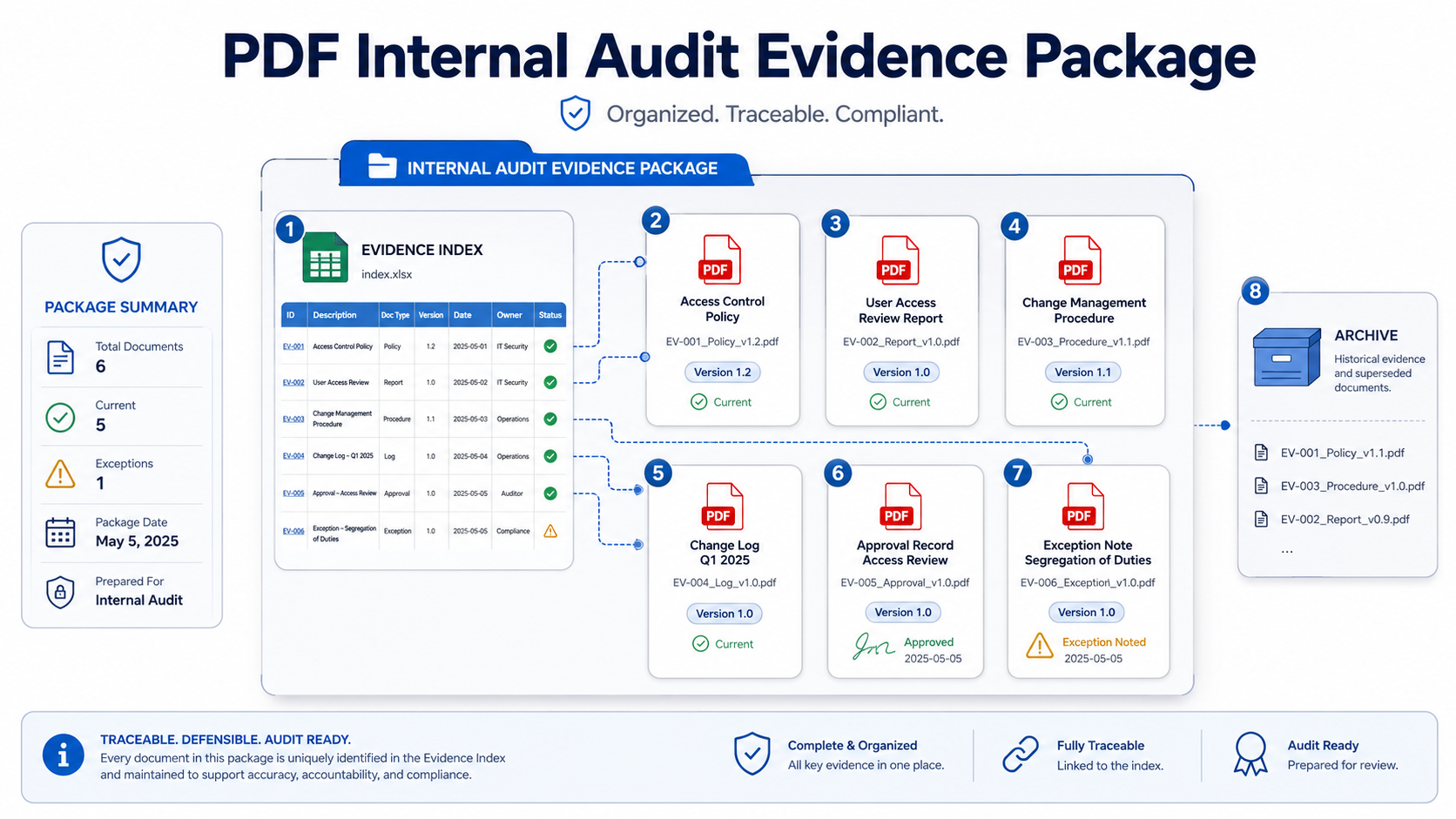
Audit Preparation · Records Management Direct answer: To prepare PDF documents for an internal audit, first define the evidence period and process being reviewed....