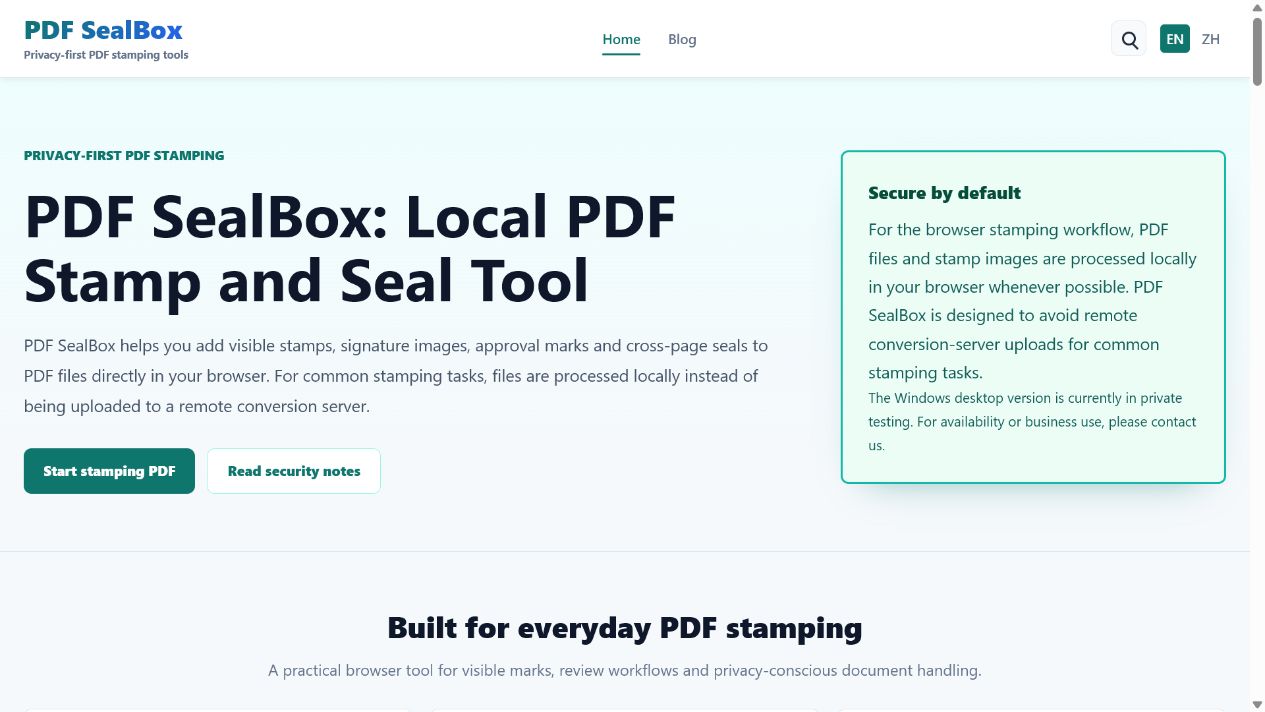
This manual explains how to use PDF SealBox to add visible stamps, signature images, approval marks and cross-page seals to PDF files. It focuses on the actual page logic: when controls become available, how preview placement works, how page ranges are applied, and when offline handling is safer.
Interface overview
Quick start
- Open the homepage and choose Start stamping PDF.
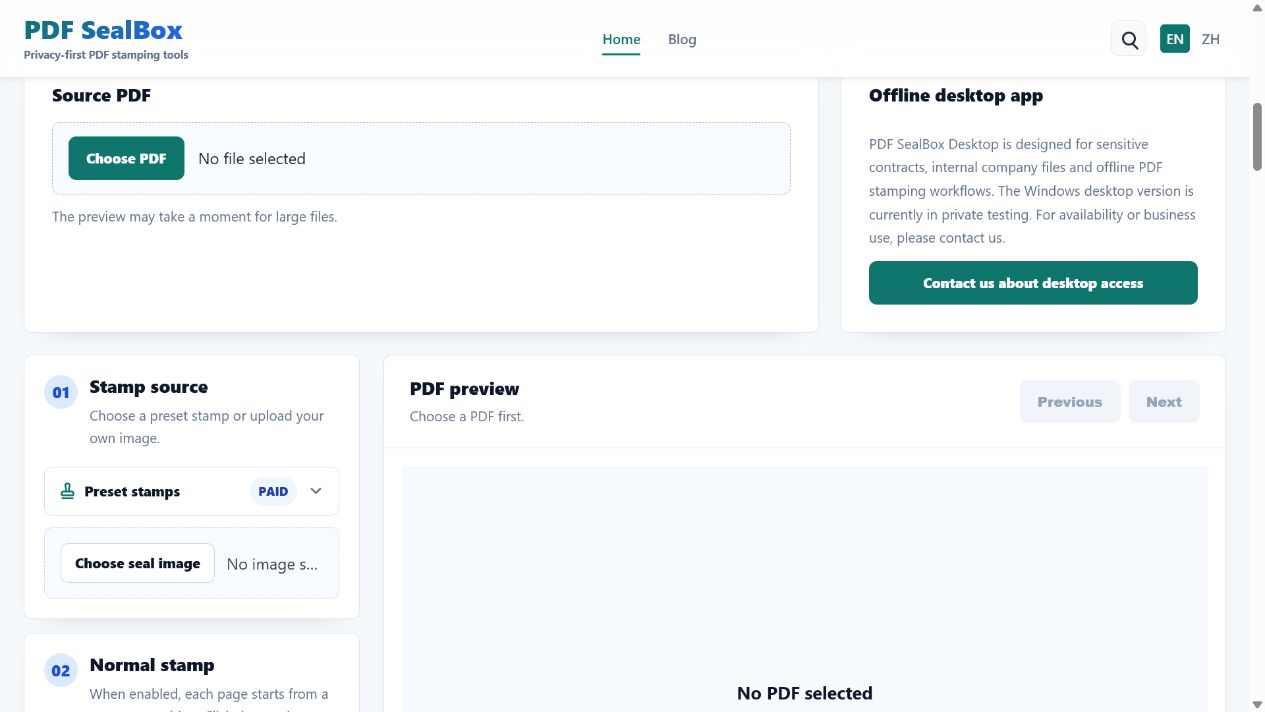
- In Source PDF, click Choose PDF and select a local PDF file.
- Wait for the preview to render. Large scanned files may take longer.
- Choose a preset stamp such as PAID, RECEIVED or APPROVED, or upload a custom seal image.
- Configure the normal stamp page range, size, opacity and rotation.
- If needed, enable the seam stamp and configure edge, position ratio, scale, opacity and max segments.
- Use Previous and Next to inspect pages. Click a PDF page to set the current page normal stamp position.
- Click Start stamping and review the downloaded
-stamped.pdffile before sharing it.
Stamp source
Choose a preset stamp or upload your own image. Presets include PAID, RECEIVED, APPROVED, REJECTED, COMPLETED, DRAFT, CONFIDENTIAL, VOID and COPY.
- Uploading an image automatically selects Custom image.
- Transparent PNG is recommended for company seals and signatures.
- The same source image is used by both normal stamp and seam stamp.
Normal stamp
The normal stamp is a visible mark placed on PDF pages. Default range is all pages, default scale is 100%, default opacity is 88%, and default rotation is -12 degrees.
- No normal stamp hides the preview and disables normal stamp controls.
- All except first page skips page 1 and stamps the rest.
- Clicking the preview changes only the current page position.
- Reset normal stamp restores defaults and clears custom page positions.
Seam stamp
The seam stamp splits the selected seal across page edges, similar to a cross-page seal workflow.
- Default mode is No seam stamp.
- All, odd, even and custom page ranges are supported.
- The toggle button is available only in custom seam mode.
- At least two selected pages are needed for a meaningful seam stamp.
Preview and export
The preview renders one page at a time. Previous is disabled on the first page and Next is disabled on the last page.
- Preview positions are stored as page-relative coordinates.
- Export maps those coordinates back to the actual PDF page size.
- The downloaded file uses the original name plus
-stamped.pdf.
Size, scale and placement logic
| Control | Default | Range | Meaning |
|---|---|---|---|
| Normal stamp size | 100% | 10%-200% | 100% is the common visible stamp size relative to the PDF page. The image aspect ratio is preserved. |
| Normal opacity | 88% | 20%-100% | Lower opacity keeps dense text more readable; higher opacity makes approval marks more visible. |
| Normal rotation | -12 degrees | -45 to 45 degrees | Applies only to the normal stamp, not to seam stamp pieces. |
| Seam position ratio | 50% | 0%-100% | Controls where the seam stamp sits along the selected edge. |
| Seam scale | 100% | 10%-200% | Scales the full seal before splitting it into edge pieces. The image is not stretched. |
| Max segments | 20 | 1-200 | Limits how many pieces a single seam stamp group uses. |
Privacy-first workflow
For the browser stamping workflow, PDF files and stamp images are processed locally in your browser whenever possible. PDF SealBox is designed to avoid remote conversion-server uploads for common stamping tasks.
For highly confidential contracts, financial records, HR files or regulated documents, use an offline workflow when policy requires it. The Windows desktop version is currently in private testing; contact PDF SealBox for availability or business use.
Legal and signature boundary
PDF SealBox adds visible marks for office productivity. It is not legal advice, notarization, certificate authority service, identity verification or a qualified electronic signature service. A visible stamp or signature image is not the same as a certificate-backed digital signature.
Mobile use
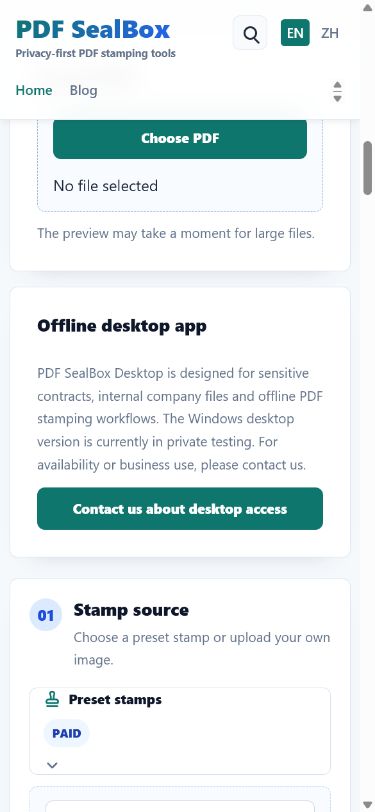
On mobile screens, the tool becomes a single-column layout. Select the PDF first, then scroll through desktop access, stamp source, normal stamp, seam stamp and preview panels. Mobile is useful for quick preset stamping, but desktop is better for precise placement, multi-page review and custom seam page selection.